Plutonium on Linux: Ultimate Cross-Distro Guide
-
Plutonium Linux Setup Guide
Updated April 2026 · Tested on Ubuntu · Debian · Arch Linux · Fedora · Solus
Note: An automation bash script & Lutris script for this setup is now available. See my GitHub repository for details.
Table of Contents
- Step 1: Install Distro Dependencies
- Step 2: Set Up Wine Prefix
- Step 3: Configure Plutonium
- Step 4: Performance Tuning
- Troubleshooting
- FAQ
- Resources & Links
Supported Systems
- Ubuntu 22.04 LTS, 24.04 LTS
- Debian (Jessie and later)
- Arch Linux (rolling)
- Fedora
- Solus
Warning: Plutonium officially supports 64-bit Windows only. Linux usage is community-supported and at your own discretion. macOS, BSD, and ARM devices are not covered by this guide.
Warning: Steam Deck LCD is incompatible with Plutonium's anti-cheat due to a HWID issue. LAN mode is available via the square button in the Plutonium Launcher, or by following the Steam Deck LAN Setup Guide. Steam Deck OLED is unaffected and can play online normally.
Overview
- Install Wine and required dependencies for your Linux distribution
- Create and configure a dedicated Wine prefix
- Set up Plutonium via Heroic Games Launcher
- Tune performance settings for optimal gameplay
Prerequisites
Before starting, ensure you have the following:
- A legitimate Steam copy of the Call of Duty title(s) you intend to play, or Family Sharing access, no pirated game files are supported.
- A 64-bit Linux system running one of the supported distributions listed above
- Root or
sudoaccess on your system
Step 1: Install Distro Dependencies
Install Wine and supporting libraries for your distribution. Follow only the section that matches your system.
Ubuntu
Enable 32-bit architecture support:
sudo dpkg --add-architecture i386Retrieve your Ubuntu codename:
cat /etc/os-releaseLook for the
UBUNTU_CODENAMEorVERSION_CODENAMEline and note the value (e.g.,jammy,noble).Download and add the WineHQ repository key:
sudo mkdir -pm755 /etc/apt/keyrings
wget -O - https://dl.winehq.org/wine-builds/winehq.key | sudo gpg --dearmor -o /etc/apt/keyrings/winehq-archive.key -
Add the WineHQ repository for your codename using the Debian/Ubuntu instructions on the WineHQ wiki, then install Wine:
sudo apt update
sudo apt install --install-recommends winehq-staging
Debian (Jessie and later)
sudo dpkg --add-architecture i386 && sudo apt update
sudo apt install wine wine32 libwine fonts-wine winetricks
sudo apt upgrade
Note: If
winetricksis unavailable, add thecontribcomponent to your APT sources. See the Debian Sources documentation for instructions.
Arch Linux
-
Enable the
multilibrepository by uncommenting the[multilib]section in/etc/pacman.conf. -
Update your system and install required packages:
sudo pacman -Syu giflib lib32-giflib libpng lib32-libpng libldap lib32-libldap gnutls lib32-gnutls mpg123 lib32-mpg123 openal lib32-openal v4l-utils lib32-v4l-utils libpulse lib32-libpulse alsa-plugins lib32-alsa-plugins alsa-lib lib32-alsa-lib libjpeg-turbo lib32-libjpeg-turbo libxcomposite lib32-libxcomposite libxinerama lib32-libxinerama ncurses lib32-ncurses opencl-icd-loader lib32-opencl-icd-loader libxslt lib32-libxslt libva lib32-libva gtk3 lib32-gtk3 gst-plugins-base-libs lib32-gst-plugins-base-libs vulkan-icd-loader lib32-vulkan-icd-loader dosbox- Install DXVK from the AUR:
yay -S dxvk-bin
Fedora
Note: Nobara Linux users should replace
sudo dnf upgradewithsudo nobara-sync.sudo dnf upgrade sudo dnf install wine dxvk wine-gecko wine-mono winetricks sudo dnf install alsa-plugins-pulseaudio.i686 glibc-devel.i686 glibc-devel libgcc.i686 libX11-devel.i686 freetype-devel.i686 libXcursor-devel.i686 libXi-devel.i686 libXext-devel.i686 libXxf86vm-devel.i686 libXrandr-devel.i686 libXinerama-devel.i686 mesa-libGLU-devel.i686 mesa-libOSMesa-devel.i686 libXrender-devel.i686 libpcap-devel.i686 ncurses-devel.i686 libzip-devel.i686 lcms2-devel.i686 zlib-devel.i686 libv4l-devel.i686 libgphoto2-devel.i686 cups-devel.i686 libxml2-devel.i686 openldap-devel.i686 libxslt-devel.i686 gnutls-devel.i686 libpng-devel.i686 flac-libs.i686 json-c.i686 libICE.i686 libSM.i686 libXtst.i686 libasyncns.i686 liberation-narrow-fonts.noarch libieee1284.i686 libogg.i686 libsndfile.i686 libuuid.i686 libva.i686 libvorbis.i686 libwayland-client.i686 libwayland-server.i686 llvm-libs.i686 mesa-dri-drivers.i686 mesa-filesystem.i686 mesa-libEGL.i686 mesa-libgbm.i686 nss-mdns.i686 ocl-icd.i686 pulseaudio-libs.i686 sane-backends-libs.i686 tcp_wrappers-libs.i686 unixODBC.i686 samba-common-tools.x86_64 samba-libs.x86_64 samba-winbind.x86_64 samba-winbind-clients.x86_64 samba-winbind-modules.x86_64 mesa-libGL-devel.i686 fontconfig-devel.i686 libXcomposite-devel.i686 libXcursor-devel.i686 libXdamage-devel.i686 libXfixes-devel.i686 libXi-devel.i686 libXinerama-devel.i686 libXrandr-devel.i686 libXrender-devel.i686 libXtst-devel.i686 zlib-devel.i686
Solus
sudo eopkg install wine wine-devel wine-32bit-devel winetricks dxvk wine-gecko wine-mono
Driver Verification
Before proceeding, confirm your GPU drivers are correctly installed.
NVIDIA: Ensure the latest NVIDIA drivers are installed along with
lib32-nvidia-utils.AMD: Verify Vulkan is using the RADV driver:
vulkaninfo | grep driverThe output should include
MESA_RADV. If it does not, your AMD Vulkan driver is not set up correctly.
Step 2: Set Up Wine Prefix
Create a dedicated Wine prefix for Plutonium and install the required Windows runtime components.
Create the prefix directory:
mkdir -p ~/wine/plutoniumInstall required components via Winetricks:
WINEPREFIX=~/wine/plutonium winetricks -q --force \
  d3dcompiler_47 d3dcompiler_43 d3dx9 d3dx10 \
  msasn1 corefonts \
  vcrun2005 vcrun2012 vcrun2019 \
  xact_x64 xact xinput
Install DXVK into the prefix:
WINEPREFIX=~/wine/plutonium setup_dxvk installNote: If
setup_dxvkfails, skip this step. DXVK may already be bundled with your Wine installation.Set the Windows version to Windows 10:
WINEPREFIX=~/wine/plutonium winecfg -v win10
Step 3: Configure Plutonium
This step uses Heroic Games Launcher to manage the Wine prefix and launch Plutonium.
- Open Heroic and select **Add Game.
- Set the executable path to:
/home/username/wine/plutonium/plutonium.exe - Click Show Wine Settings and set the Wine Prefix path to:
/home/username/wine/plutonium - Launch Plutonium and point it to your Steam game directory, for example:
/home/username/.steam/steam/steamapps/common/Call of Duty Black Ops II
Note: If Plutonium shows an "invalid game folder" error, enable Show dot files in winecfg under the Drives tab:
WINEPREFIX=~/wine/plutonium winecfg
Step 4: Performance Tuning
The following Heroic settings are recommended for best performance.
Tab Setting Wine Version: GE-Proton (latest) Enable Esync/Fsync (disable if using NTSYNC) Other Enable Gamemode Disable AntiCheat runtimes Advanced Environment variables: DXVK_FRAME_RATE=200 LD_PRELOAD=""PROTON_USE_NTSYNC=1 PROTON_USE_WOW64=1(requires Kernel 6.15+)PROTON_PRIORITY_HIGH=1 STAGING_SHARED_MEMORY=1 PROTON_ENABLE_WAYLAND=1Tip: Shader stuttering is normal on first launch. Performance improves as the shader cache builds during gameplay.
Troubleshooting
Stuttering/Erratic Mouse Behavior
- Use proton-cachyos or GE-Proton (Ge-Proton10-15 minimum, latest version recommended)
- Use wayland, and use
PROTON_ENABLE_WAYLAND=1 - If you cannot or refuse to use wayland, rely on
DXVK_FRAME_RATE=Xfor frame capping and do not use the fps cap setting in plutonium/in game. Instead keep FPS in game unlocked.
Crashing on Startup
- Confirm the Wine prefix is set to Windows 10 or Windows 11.
- Enable verbose logging in Heroic: Right Click Plutonium → Settings → Advanced → Enable verbose logs → Right Click again → Logs.
- If the prefix appears corrupted, back up your
plutoniumfolder inside the prefix, then recreate the prefix from Step 2.
Controller Not Detected
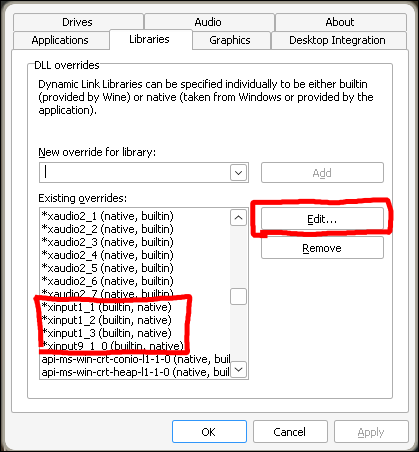
Open winecfg for your prefix:
WINEPREFIX=~/wine/plutonium winecfg- Go to the Libraries tab.
- For each
xinputX_Xentry, set the override to Builtin then Native. - Apply the changes and restart Plutonium.
FAQ
Q: BO1 or WAW runs poorly.
These older titles have notoriously poor PC ports. Try FPS capping or switching to windowed mode. For best results, use Kernel 6.15+ with NTSYNC + WOW64 and PROTON_WAYLAND enabled. See the NTSYNC documentation for enabling details. Wine CPU pinning can also help on CPU's with high core+thread counts. Mouse polling above at or above 1000hz can also cause issues.
Q: The Plutonium installer appears frozen.
Wait at least 60 seconds before taking action. If it remains unresponsive, force-stop the process via Heroic and retry.
Q: Can I use mods or custom content?
Yes. Mod folders are located at:
~/wine/plutonium/drive_c/users/[USER]/AppData/Local/plutoniumReplace
[USER]with your system username when using Wine, orsteamuserwhen using Proton.
Place any mods/skins inside the plutonium folder as instructed in the plutonium modding documentation or instructions of the mod/skin being downloaded.
Q: Can I host Plutonium servers on Linux?
Yes, though it requires additional setup and ongoing maintenance. If you are new to Linux, a Windows VPS is the simpler path. Note that Plutonium does not officially support Linux for clients or servers.
Available community resources:
- Draakor's Eggs — Pterodactyl/Pelican Panel eggs
- PlutoniumLinuxHosting — bare metal setup
- T5Server — bare metal setup
Resources & Links
-
 CamoMano referenced this topic on
-
I just use the install script off of Lutris's website But this is good to know for just in case the script ever breaks in the future
-
Having issues with setting resolution for B01, tried changing r_monitor and r_mode but no success

-
thanks,for Plutonium i use PortProton(arch linux)
-
Who were your influences when you did this tutorial? I ask, because I made a tutorial for CachyOS users on my main YouTube channel, and a bit of the stuff I've seen here happened to be from a different tutorial I did on this forum. Great work otherwise.
-
 Neigdoig referenced this topic on
-
Who were your influences when you did this tutorial? I ask, because I made a tutorial for CachyOS users on my main YouTube channel, and a bit of the stuff I've seen here happened to be from a different tutorial I did on this forum. Great work otherwise.
Neigdoig Originally it was a few resources on this Forumn (if you view my edits on this post, you can see all those I originally credited), but they were all split apart or hadn't been maintained in a while.
I used a lot of those resources to build a new foundation for a maintainable documentation, and I spent a lot of my own time testing out different fixes and wine/proton patches to fix certain issues like input delay/stutters, FPS issues with 1% lows, crashing, and all that Jazz.Most of the resources I copied were (at the time) system packages + a few wine DLL setups, everything else was done through my own research.
-
yeah sorry brotato this just made it so it doesnt even give me an error, it just dosent even open so thanks a lot
romer5092 Sorry to hear, still worked fine for my today testing on a fresh VM. Might want to temporarily try using a new wineprefix. It's a known issue for them to break randomly. If that is the issue and you're still trying to resolve it, backup any mods/skins you may have setup previously.
If you used any GUI tools to help with the setup (like winetricks GUI) I recommend using the CLI, oddly some parts of the setup flat out break with the GUI and cause more issues. -
Neigdoig Originally it was a few resources on this Forumn (if you view my edits on this post, you can see all those I originally credited), but they were all split apart or hadn't been maintained in a while.
I used a lot of those resources to build a new foundation for a maintainable documentation, and I spent a lot of my own time testing out different fixes and wine/proton patches to fix certain issues like input delay/stutters, FPS issues with 1% lows, crashing, and all that Jazz.Most of the resources I copied were (at the time) system packages + a few wine DLL setups, everything else was done through my own research.
Astrocule This I can't blame you for.
And yes, I did see the SoyKappy guide. I made my own version based off of that (through some testing I did on it).
One thing I notice is that, on the Heroic Launcher side of things, we need to find a way to implement D3D Extras, since that's apparently a requirement for Plutonium to work (at least for me, since I'm on Artix). I tried this on Lutris (which has that option), and I enabled it.
Maybe you could find a way to potentially sneak that in? I can give you the exact setting or something along these lines once I find it.
EDIT: I found it.
WINEDLLOVERRIDES="d3dcompiler_47,n;d3dx9_43,n;d3dx10,n"I just tested it, and it works now.
-
Hey, Thank you this guide worked for me. One small issue i have: The updater gets stuck when opening the launcher, and if I start playing, and quit the game, the launcher will not come back, and the updater still there.

NortHD Also having this issue on Mint using the Lutris script. You ever figure out what was wrong?
-
I have a problem, the game launch great with plutonium, but when I want to join a match the game freeze. I'm running the latest version of mint. I did not launch it with the heroic games launcher because it do not launch plutonium. I launched it with the exe in the folder ~/wine/plutonium . For info I launched black ops 2 with steam and and the game worked fine. any sugessions?




Hello! It looks like you're interested in this conversation, but you don't have an account yet.
Getting fed up of having to scroll through the same posts each visit? When you register for an account, you'll always come back to exactly where you were before, and choose to be notified of new replies (either via email, or push notification). You'll also be able to save bookmarks and upvote posts to show your appreciation to other community members.
With your input, this post could be even better 💗
Register Login