Custom 2D Menu Background
-
A simple tutorial to replace the default BO1 zombies menu background (3D interrogation room / TVs) with a custom 2D image.
Step 1 — Place the menu files
Copy the following files into your mod folder:
mods/<yourmodname>/ui/main.menu
mods/<yourmodname>/ui/main_online.menu
mods/<yourmodname>/ui/private_mission_select_zombie.menuAnd this file into your maps folder:
mods/<yourmodname>/maps/frontend.gsc
Step 2 — Create your menu image
Create an image with the following specs:
Size: 1024 x 1024 (or 2048 x 2048)
Format: .dds (24-bit, no alpha)
Content: Your custom background image
Save the image as mon_menu.dds
Step 3 — Create the material in Asset Manager
Open Asset Manager
Load your .gdt file
Click New Entry
Name: mon_menu
Set the following parameters:
materialType 2d
surfaceType <none>
blendFunc Replace
alphaTest Always
tile no tile
mipmap nomip bilinearIn the Color map field, click ... and select your mon_menu.dds
File → Save
PC Convert → Convert Selected
Step 4 — Copy files to your mod
Once the conversion is done, copy the generated files:
mods/<yourmodname>/images/mon_menu.iwi
Step 5 — Add entries to mod.csv
Open mods/<yourmodname>/mod.csv and add the following lines:
material,mon_menu
rawfile,maps/frontend.gsc
menufile,ui/main.menu
menufile,ui/main_online.menu
menufile,ui/private_mission_select_zombie.menuStep 6 — Build and test
Thank you for watching this tutorial
DOWNLOAD : https://mega.nz/folder/z85l2IJD#X7kD3Og3zIMEN-HzKxlZXg
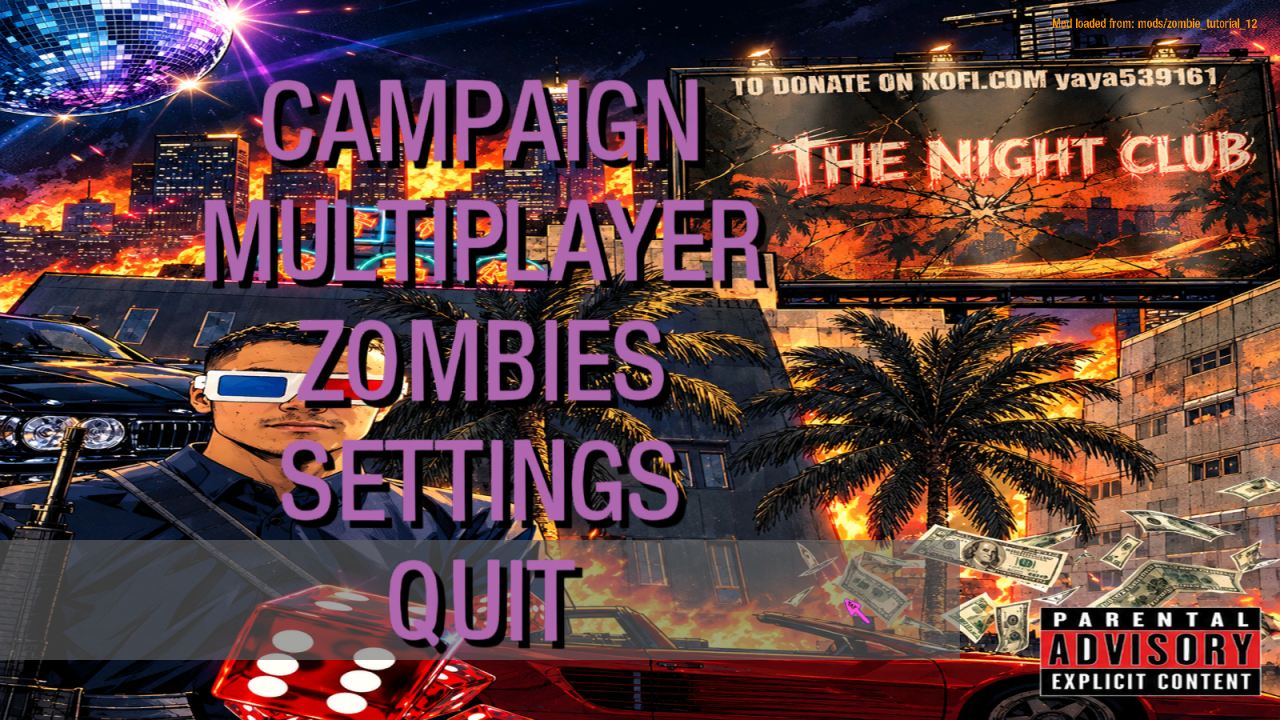
-
A simple tutorial to replace the default BO1 zombies menu background (3D interrogation room / TVs) with a custom 2D image.
Step 1 — Place the menu files
Copy the following files into your mod folder:
mods/<yourmodname>/ui/main.menu
mods/<yourmodname>/ui/main_online.menu
mods/<yourmodname>/ui/private_mission_select_zombie.menuAnd this file into your maps folder:
mods/<yourmodname>/maps/frontend.gsc
Step 2 — Create your menu image
Create an image with the following specs:
Size: 1024 x 1024 (or 2048 x 2048)
Format: .dds (24-bit, no alpha)
Content: Your custom background image
Save the image as mon_menu.dds
Step 3 — Create the material in Asset Manager
Open Asset Manager
Load your .gdt file
Click New Entry
Name: mon_menu
Set the following parameters:
materialType 2d
surfaceType <none>
blendFunc Replace
alphaTest Always
tile no tile
mipmap nomip bilinearIn the Color map field, click ... and select your mon_menu.dds
File → Save
PC Convert → Convert Selected
Step 4 — Copy files to your mod
Once the conversion is done, copy the generated files:
mods/<yourmodname>/images/mon_menu.iwi
Step 5 — Add entries to mod.csv
Open mods/<yourmodname>/mod.csv and add the following lines:
material,mon_menu
rawfile,maps/frontend.gsc
menufile,ui/main.menu
menufile,ui/main_online.menu
menufile,ui/private_mission_select_zombie.menuStep 6 — Build and test
Thank you for watching this tutorial
DOWNLOAD : https://mega.nz/folder/z85l2IJD#X7kD3Og3zIMEN-HzKxlZXg

yaybeat peak
Hello! It looks like you're interested in this conversation, but you don't have an account yet.
Getting fed up of having to scroll through the same posts each visit? When you register for an account, you'll always come back to exactly where you were before, and choose to be notified of new replies (either via email, or push notification). You'll also be able to save bookmarks and upvote posts to show your appreciation to other community members.
With your input, this post could be even better 💗
Register Login