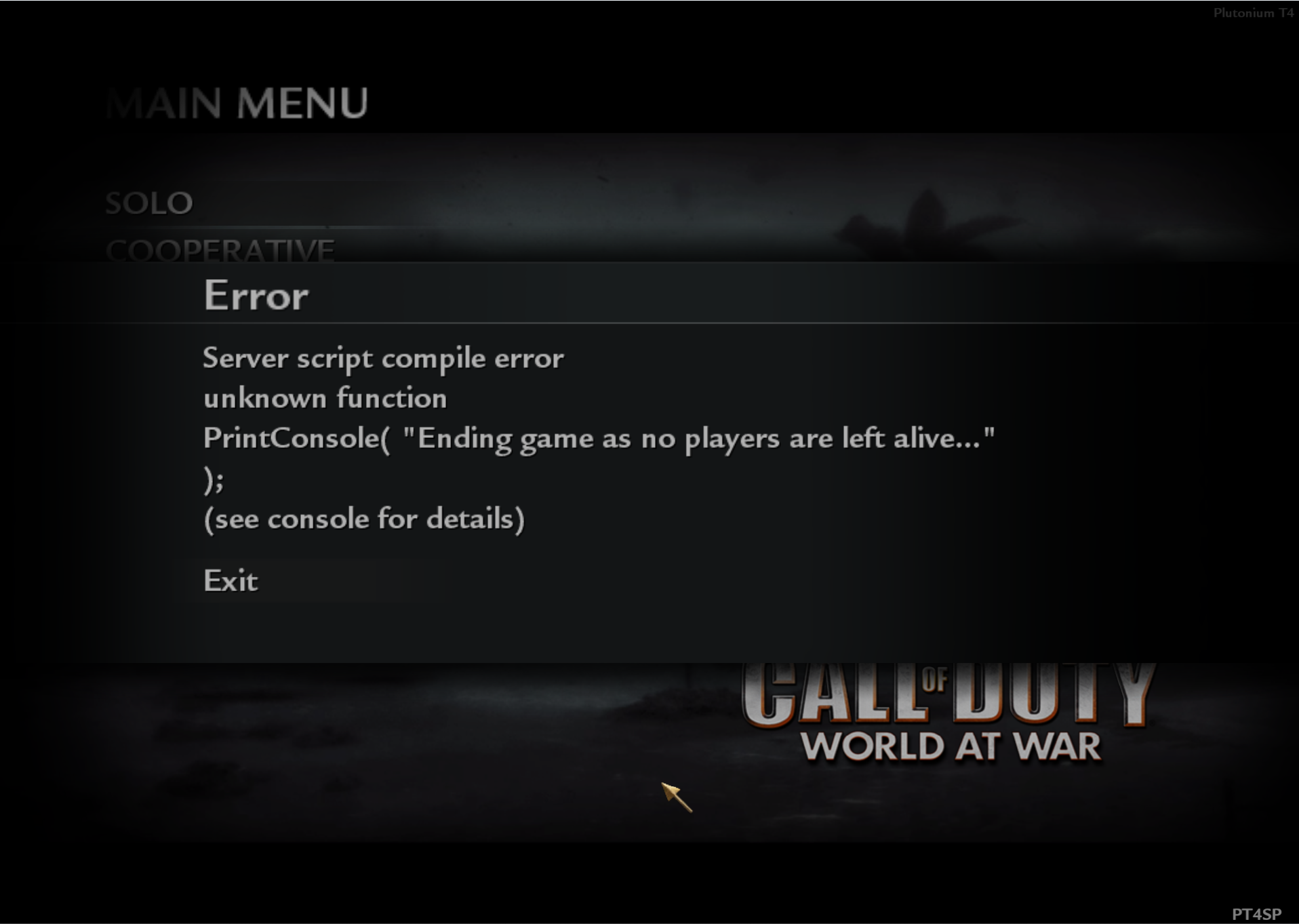
The client now reads the files from a different directory. Previously it was reading them from %localappdata%\Plutonium\storage\t4\players, now it’s reading them from %localappdata%\Plutonium\storage\t4\players\profiles\$$$ (or profiles\USERNAME if you’re able to load a profile)
To reapply your previous stats and classes, you could follow this process:
Press Win+R, copy this directory %localappdata%\Plutonium\storage\t4, paste it into the window that opened, then press Ok.
Open the players folder.
Select the following items if they exist and copy them:
mods folder
mpdata file
mpdatabk0000 file
Open the directory profiles\$$$ (LAN/no profile) or profiles\USERNAME. If you’re looking to apply the stats to the LAN/no profile but it doesn’t exist, either create the directory profiles\$$$ or open the game.
Paste the items copied from step 3 into the directory opened in step 4. If prompted to replace or skip files, select the replace option.
This should apply your previous stats.
Note (2025/12/23): The following instructions are not needed as of r5124 as Plutonium does them automatically.
If you also want to apply your previous class names and settings, go in-game, open the console, and execute the respective command for the mode you’re on:
Multiplayer
exec plutonium_mp.cfg; vid_restart
Singleplayer/Coop
exec plutonium.cfg; vid_restart