ANNOUNCEMENT!!!
Its been a couple of weeks since the last update i've done for the mod (which is very lackcluster), and i don´t have much ideas left for the project since most of it has accomplished its own purpose
So heres my idea...
Open a suggestion chat so yall can bring in new ideas that might improve the quality of life of the mod in the Cod Modding discord server (Or also here too, why not?)
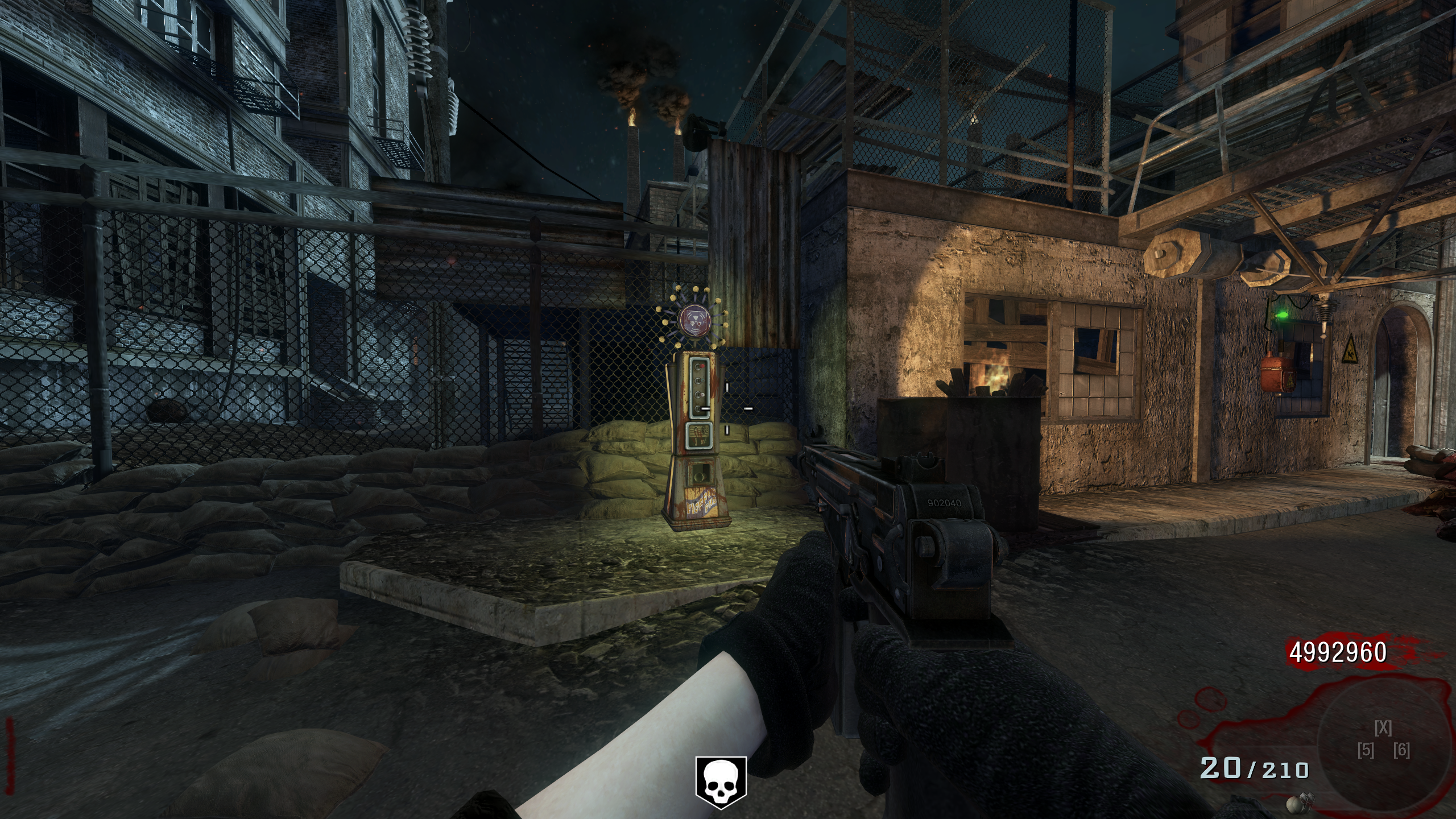
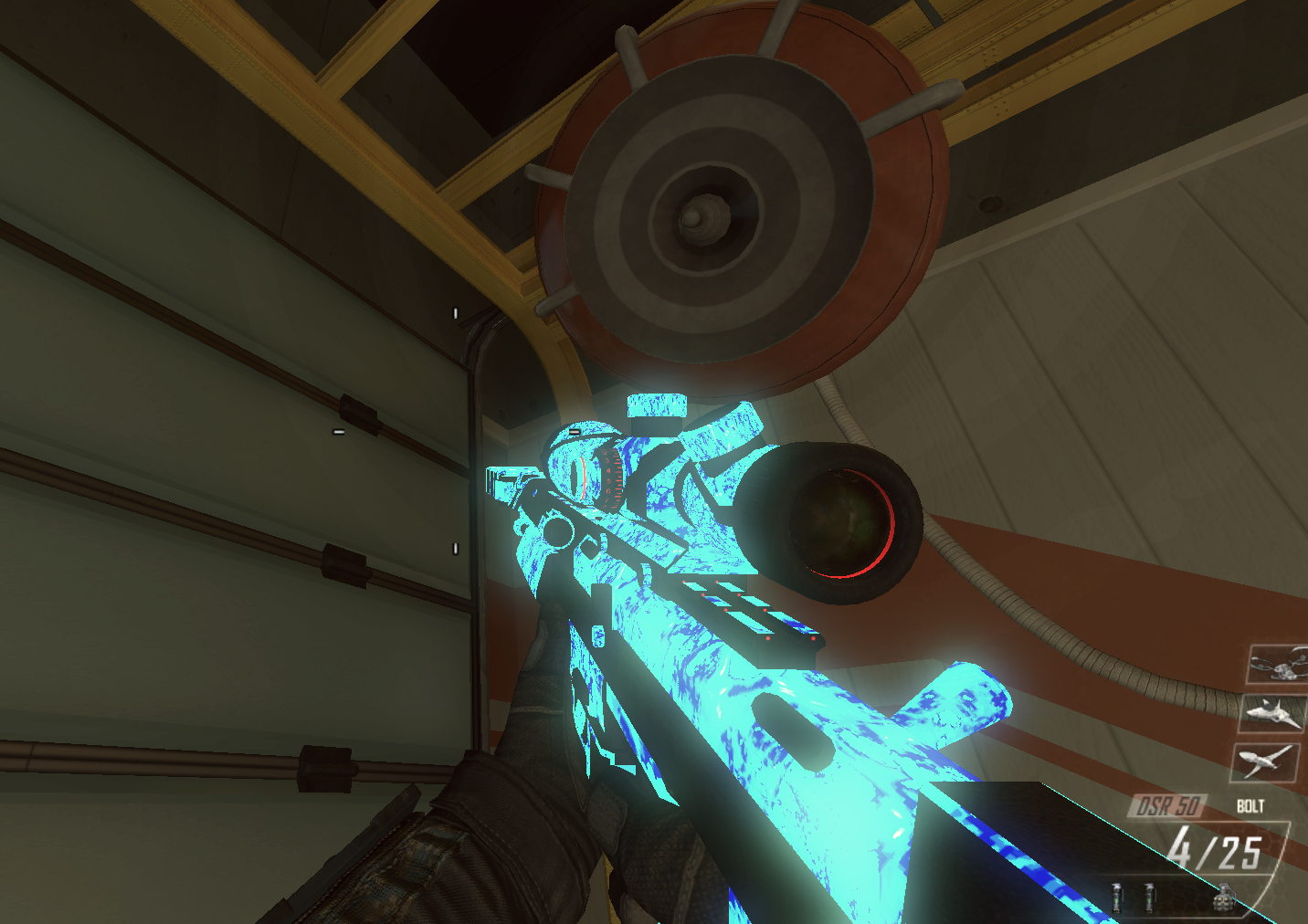
Why dont let the mod "die"? cuz i don't feel the mod is done yet, i might even do some other changes to the hud so it looks more organized although it might give issues with the entities limit
So feel free to not only bring feedback for the mod, but also give any cool ideas, and also can check other cool mods like the DLC 5 mod, Death Machine Power Up for T6, and other potential mods that will be available in the future too!
[image: 1789787188815-382dc31c-4025-4948-8478-bda48e78c9f4-image.jpeg]